Your WhatsApp,now inside ChatGPT.

Connect your iZap account to ChatGPT (and Claude) through MCP and run your WhatsApp in plain language: send messages, view stats, search conversations and tune your AI assistant. No code, in just minutes.

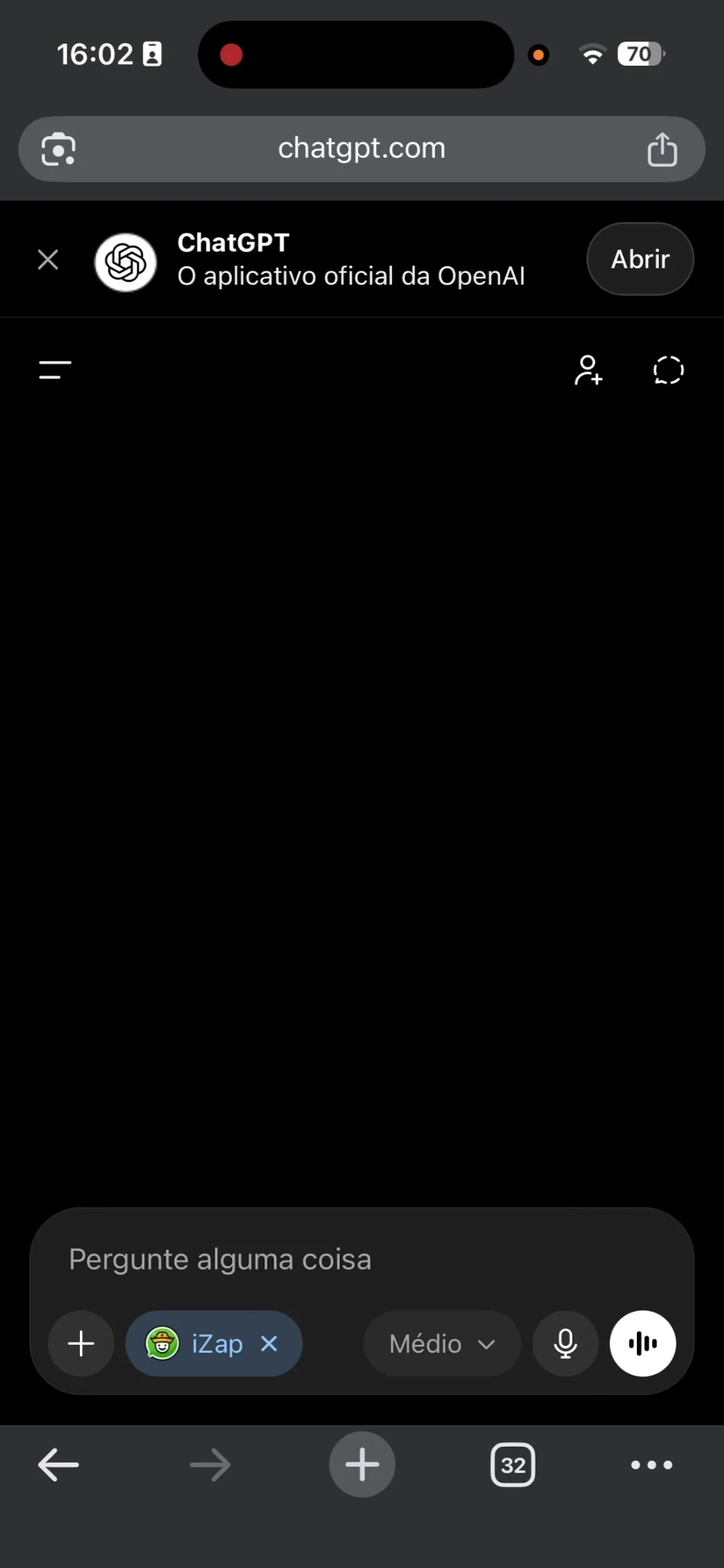
ChatGPT with the iZap connector active in the prompt bar
12
AI tools
3 min
To connect
2
Claude and ChatGPT
$0
Included in your plan

Watch the connection happen

Four steps, real screens. This is how your WhatsApp shows up inside ChatGPT.

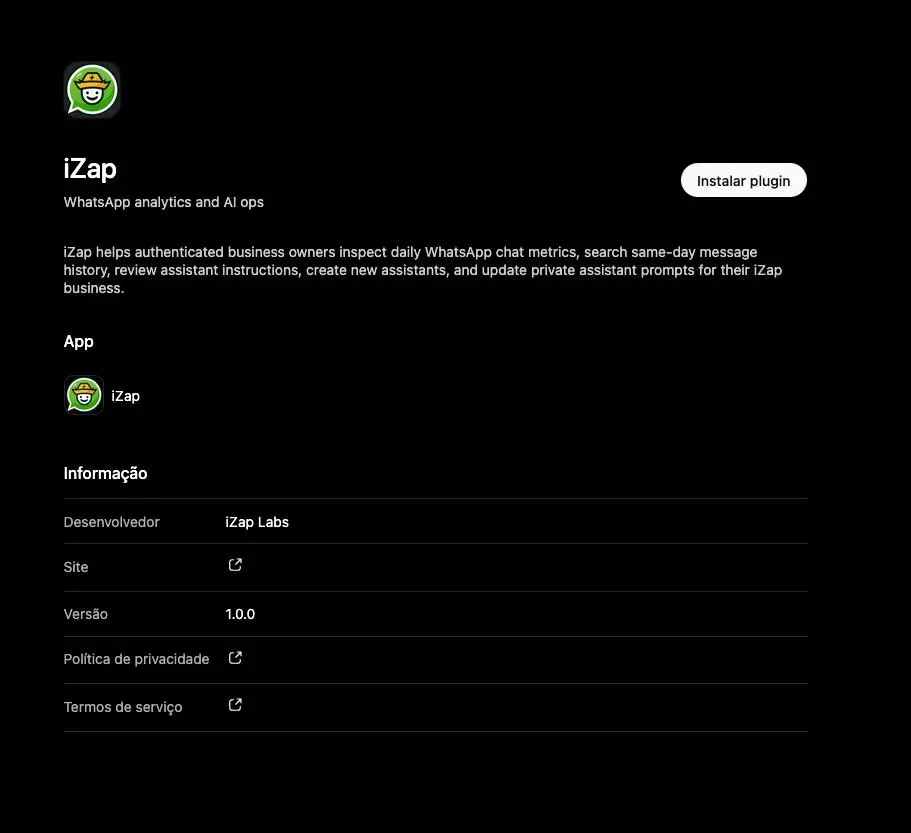
ChatGPT create connector modal with iZap name and MCP security warning
1Step 1

Create the iZap connector

Name the connector iZap, paste the MCP server address and confirm the security warning to finish creating it.

iZap OAuth authorization screen with WhatsApp Business connect option
2Step 2

Sign in with your iZap account

Authorize access with your iZap account. The process is quick and your account is linked automatically.

Meta page to select WhatsApp Business phone number
3Step 3

Connect WhatsApp Business

Authorize the connection with Meta so iZap can receive and send messages from your WhatsApp number.

ChatGPT with the iZap connector active in the prompt bar
4Step 4

Done: iZap active in ChatGPT

The iZap connector appears in the prompt bar. Just ask ChatGPT to send messages, view stats or manage contacts.

What you can ask for

Once connected, just chat. A few examples of what ChatGPT and Claude can do with your WhatsApp:

Send messages

Ask it to send a WhatsApp message to any of your contacts β€” right from the AI chat.

Today's stats

See conversations, messages and people served today, plus the AI-to-human ratio.

Search conversations

Find today's messages by keyword without leaving the chat.

Create and tune your assistant

Build an AI agent or refine its instructions in plain language.

Contacts and templates

List your contacts and your Meta-approved message templates.

Send WhatsApp templates

Fire approved templates with variables filled in by the AI.

Connect it yourself

Use the same address in ChatGPT or Claude. When you add the connector, sign in with your iZap account and authorize access.

MCP server address

https://api.izap.ai/mcp
ChatGPT
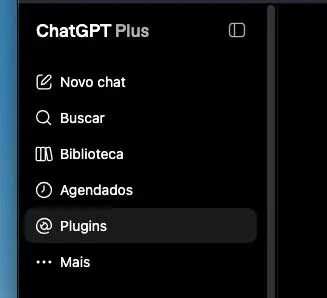
  1. 1Open ChatGPT and go to Settings β†’ Connectors.
  2. 2Under Advanced settings, enable Developer mode.
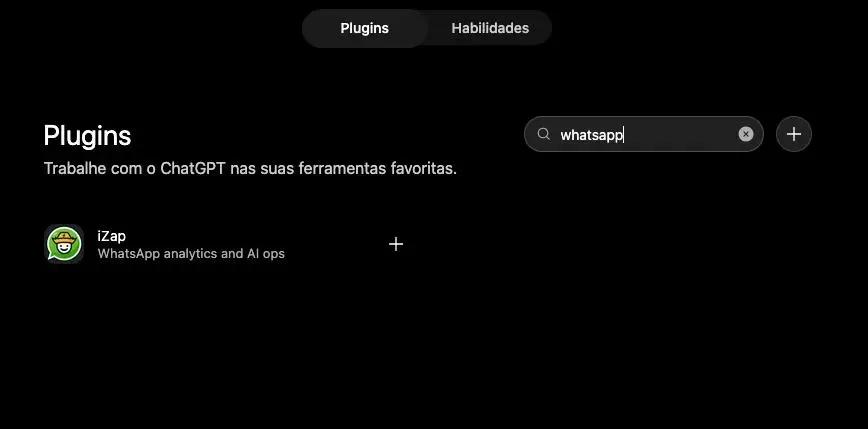
  3. 3Click "Create" and add iZap's MCP server address.
  4. 4Authorize with your iZap account and start using it.

Developer mode is required for custom MCP connectors in ChatGPT.

Claude
  1. 1Open claude.ai (or the Claude app) and go to Settings β†’ Connectors.
  2. 2Click "Add custom connector" and paste the MCP server address.
  3. 3Click Connect and sign in with your iZap account when prompted.
  4. 4Done! Ask something like "list my connected assistants" to test.

In Claude Code, use:

claude mcp add --transport http izap https://api.izap.ai/mcp

Frequently asked questions

Don't have an iZap account yet?

Create your AI assistant on WhatsApp and connect it to ChatGPT and Claude. The integration is included in every plan.

See Plans